Adventure Nomad

Adventure Nomad
Showing posts with label Web and Tech Stuff. Show all posts

Sunday, April 3, 2016

Best GPS Apps Of 2016

Armed with GPS chips, mobile phones have become increasing powerful, and prices of such devices have fallen to levels within reach of many.  The larger screen and ability to quickly and easily update apps and maps, make them a viable replacement for dedicated GPS devices in many cases.  There are some caveats to using your phone for navigation, such as making sure you don't run out of power, and having a back-up, such as carrying paper maps or another mobile phone.  Read more here.

There is no one single best app for navigation.  Different apps have different strengths, different areas of coverage, eg. urban vs. backcountry.  In no particular order, here are the GPS apps on my iPhone and my picks for the best GPS Apps of 2016:
1.  Google Maps (Free)

Like it or not, Google is one of the best apps for GPS.  It is extremely powerful with excellent maps, including some offroad trails, a searchable data base, real-time traffic information, and turn-by-turn navigation for driving, walking/biking, and public transportation.  It requires data for use, and it is my default app at home where I have a data plan.  You can store a small portion of a map, like a city, for offline use, but that doesn't work for me, and so I don't use this app when I travel.

2.  Here Maps (Free)
Here Maps was originally developed by Nokia and is now owned by three German automotive companies - Audi, BMW and Daimler-Benz,  Map presentation is not as slick as Google Maps, but both app functions similarly.  The big difference is that it can do it Offline - meaning it does not require online data to function.  To have offline navigation capability, you will need to download the map of the country (not all countries are supported) and store that on your phone.  Once the map is downloaded, you will have a searchable data base, turn-by-turn navigation for driving, pedestrian, and public transportation.  You can also get real-time traffic information by choosing to use the app online.  Here uses its own maps, so it may be better or worse than Google, depending on where you are.

3. Maps.Me (Free)
If there is a no-brainer navigation app to download, it's Maps.Me.  For an offline GPS app with a searchable database, it's extremely responsive, fast to load app with a very small footprint.  Just to give you an idea of how remarkably compact the map data file size is, Singapore on Here Maps is a 112MB download, while it's just a 7MB on Maps.Me.  It also claims to cover every country in the world.  It uses the open source OpenStreetMaps data, which can be either good or bad, depending on contributors to the mapping database. Often, I'm able to search out locations like a small hotel or coffeeshop that cannot be found on Here Maps.  Other times, it misses completely where Here or Google Maps will find it. It offers turn-by-turn voice instructions can be enabled for driving and walking/biking, but no option for public transportation like Google or Here.  The map presentation looks quite nice, and various points of interests and landmarks pop up as you increase the scale, which is great for travellers on foot or bike to orientate themselves while moving around a city.  It's strength is being able to search out and find things that travellers would be interested in - parks, trails, coffeeshops, hotels, etc.  For my use, it has replaced Maplets on my iPhone.  I have not noticed any battery drain for Maps.Me, but I do notice that Maps.Me selects the GPS so it is always on, regardless of whether you are using the app or not. 


4. Gaia GPS (Paid)
For backcountry navigation, Gaia GPS remains my app of choice.  The availability of USGS Topo Maps for the USA and a host of other downloadable wilderness maps, and features such as being able to create a route manually on the iPhone itself, and power saving features make it a clear winner.  Gaia GPS can be used offline, and in addition, also selected for use in 'Flight Mode', which means the phone is off.  In the backcountry, this is a good thing, since it is unlikely that there is a phone signal, and your phone isn't left searching for a signal.  Note that the search function is poor, and it doesn't do turn-by-turn navigation, so it's not a GPS app for urban use.  For a write-up on navigating with Gaia GPS on your iPhone, read this.

Tuesday, June 30, 2015

How to Use the iPhone 6 (and 6 Plus) for Backcountry Navigation

The new iPhone 6 and 6+ (pictured) have larger and better displays for map use in the field and significantly better battery life.  Changes to Airplane Mode introduced in IOS 8.3 make it easier to manage battery life.  We are eaisly getting 6-7 days or more of normal backcountry use without recharging.  Photo from adventurealan.com
I use my iPhone for navigation.  With good mapping software (I use Gaia GPS), an external battery pack to extend the life of the iPhone, and maybe a spare iPhone as backup (my wife's iPhone),  I've never found the need for anything else.

This is a great article by AdventureAlan'sUltralightBackpacking, whose thoughts mirror my own on how to use the iPhone for Backcountry Navigation.  Click this link to jump to the article.

Friday, February 1, 2013

MotionX GPS vs. Gaia GPS

Ever since the iPhone came out with GPS, there have been GPS apps to take advantage of the GPS hardware built into the iPhone.  GPS apps like MotionX and Gaia are able to download and store free maps, so that they can used 'offline' - which means no costly data connection is required.

How does it work?  Your iPhone (3g and up) has basically three antennas:  The cellular antenna, where you get your phone calls and 3g data over a cellular network; the WiFi antenna, which connects to the internet for data from your home or WiFi hotspot; and the GPS antenna, which searches the skies for satellites and can pinpoint your position by triangulation.

It's free to use the GPS antenna on your iPhone, however, you need some maps on your iPhone to be able to make sense of the data.  You get those maps by preloading, or downloading the maps into your iPhone.  This is best done by WiFi, which is fast and (can be) free.  Be sure to turn off Mobile Data and Data Roaming when using these apps to prevent streaming live maps and additional costs.

Ok, on to the review.  Below is a head to head review on two popular GPS apps: MotionX GPS and Gaia GPS.

        MotionX GPS (v 20.0)                          Gaia GPS (v 7.2)
Gaia GPS navigation screen on iPhone 4s

MotionX navigation screen on iPhone 4s

I've been a long time user of MotionX GPS. At $0.99, it's a steal, however, your map download choices are limited to OpenStreetMap (OSM) and OpenCycleMap (which are OSM maps with terrain contours and bolder trail markings).  MotionX relabels these maps as MotionX Road and MotionX Terrain.  OSM maps are user developed, and require volunteer input to improve the maps.  OSM maps tend to be rather hit or miss, and it's hard to determine where they might hit or miss.  That's why I prefer a GPS app with other map choices.

UPDATE:
A reader has brought to my attention that MotionX GPS now offers downloadable maps from custom URLs, including USGS Maps for an additional $4.99. 

This is a MotionX screenshot of a section of the popular Annapurna Circuit trekking route in Nepal.  Here, OpenCycleMap is the best choice.
This is a Gaia GPS screenshot of part of Luang Prabang in Laos.  The purple line is a track I've created using RideWithGPS and downloaded to the Gaia GPS app.  The brown and blue square icons are POIs.  In Laos, Google Road Map was the best map choice for me. 
Gaia GPS costs $19.99, and offers a staggering number of downloadable maps, including OSM, OpenCycleMap, USGS Topo and Google Road maps.  The inclusion of USGS Topo and Google Road maps is a huge plus over MotionX.   If you're backpacking or biking in the backcountry anywhere in the USA, you will absolutely want the USGS Topo maps.  USGS paper maps are $15 each, so the app more than pays for itself if you need more than one USGS map!  For travels into third world countries, I've also found Google Road maps to be extremely useful as OSM data is often incomplete.  Gaia GPS is the only app I've found that has downloadable Google Road Maps.  Having the ability to preview a few maps and then download the best one that suits your needs is Gaia's strength.  See more examples below.

USGS Topo Map on Gaia GPS (full screen view mode).  I need the Colorado Trail which heads up north of Little Molas Lake.

 OpenCycleMap of the of the same area above.  Colorado Trail?  Err... What trail?

When I head out somewhere with a route in mind, I like to map it out.  I'll use software like MapMyRide or RideWithGPS to draw out a track, and then transfer the track to either MotionX or Gaia.  This track then shows up as a colored line on the map that you have downloaded onto your iphone, You can then monitor your progress on the track with your GPS position, which is indicated by the blue (MotionX) or orange (Gaia) arrowhead on the display.

Gaia GPS can display POIs (Points of Interest) which are downloadable, and are displayed on the map with a little clickable icon.  The name of the POI is available offline, and these are places of interest.  They could be your destination, or places to eat or sleep.  I find them useful when using street maps, like Google Road maps, or when planning.  I can click on a POI and leave it open while I scroll around the map.  The open POI allows me to find it again easily.  I find POIs clutter up the screen when using topo maps.  When you don't find POIs useful, you have the option choose which POIs to display or turn them entirely. 

For 99 cents, there's a lot of functionality built into MotionX.  You can monitor your heart rate (requires a compatible heart rate sensor), you can choose it's behavior for the app running in the background to save battery while monitoring your track.  As a result of all this functionality, the interface tends to look complicated.  Gaia GPS doesn't do heart rate, but otherwise most of the other functions, like tracking, are there, with a simpler user interface.

MotionX Search Screenshot
MotionX menu screenshot


Downloading maps in MotionX is a process of using a circular tool or elliptical tool to select the area you want to download.  The circular tool lets you draw a circle around an area, like a city.  To download the map for a planned track, you'll need to use the elliptical tool to draw out an area around your track, then select the scale (I use 1-16, which is the maximum for MotionX Terrain), then download it.  The process is painstaking in both effort required to use the tool and time required to download.  For a long track, like my upcoming bike tour of Vietnam and Laos, will take over a week of nightly downloads (I leave the download running all night because it takes hours).
Using the MotionX tool to download the map around a track.  You got to get this just right.  Too little, and you risk chopping off useful sections of map.  Too much and you'll spend time downloading excess data.


Downloading maps with Gaia is fast and easy.  For tracks, simply choose the track, then select 'Download Map for Track'.  Unlike MotionX, there is nothing to select.  Gaia GPS automatically downloads a five map tile width along the length of your track at maximum resolution.  Downloading the map of an area, like a city, is similar to MotionX.  You need to use a rectangular tool to select the area, select a scale, then download.  Download speeds are much faster than MotionX and typically takes me minutes instead of hours.
Gaia GPS downloading map around a track in progress.  No tools, just click 'download'. 
If I have any criticism of Gaia GPS, it's that the navigation screen is too cluttered.  Compare the two side-by-side screenshots at the top of the page.  MotionX makes better use of screen space.  Screen navigation buttons are pop-up and disappear after a couple of seconds.  Touch the screen anywhere to make those buttons pop-up.  Touch the double arrow icon on the right of the screen to make the menu buttons appear.  Gaia's screen is a little more cluttered.  The only way to make the menu bar disappear is to turn your iphone sideways, which then gives you a full screen view.  If you cannot rotate your iphone (eg, if your iphone is in holder on your bike handlebar), or you simply prefer to hold your iphone upright, then there's no way to make the menu at the bottom of the screen disappear, and it's taking up valuable screen space.  Also, note the arrows at the bottom left, and top left and right of the screen.  The top buttons slide out the search function and menu.  The two bottom buttons are user configurable.  Nice, but those buttons can get in the way when scrolling the map.

Note that Gaia GPS is a universal app designed for both iPad and iPhone, and is also available for Android.  MotionX is an iPhone app.  The iPad version, MotionX HD, is available for $1.99.

 Conclusion
For adventure and travel, I'd go with Gaia GPS.  The additional maps on Gaia GPS gives users a lot more versatility and accuracy; plus the ease and speed of map downloads over MotionX wins me over.  

Sunday, December 25, 2011

iPhone 4s Camera... Wow!

It's been said that the best camera is the one you have with you (originally from Chase Jarvis) and the iPhone 4s camera brings you one step closer to ever-ready, high-quality image capture. 

These are the specifications for the iPhone 4s camera:
8 Megapixels
30mm approx focal length (it's about the same as the iPhone 4)
F/2.4 fixed aperture
Face detection autofocus
Tap to focus
Tap and hold to lock focus and exposure
LED flash (on, off or Auto)
Electronic image stabilization in both camera and video mode

The iPhone 4s, as an all-in-one device, is a boon to ultra-lightweight travelers like bicycle tourists and I took a risk and brought my iPhone 4s as my only camera on a recent bike trip to Malaysia.  It was the first time I'd put camera and video on my new iPhone to the test.  Needless to say, it was not perfect, and I learned quite a few things.  Here's what I got:

A journey from Kuala Lumpur to Ipoh, Malaysia, via the Central Highlands.  4 days, 400km, 17,200' of climbing.  Shot entirely with the iPhone 4s.

Here are some tips from what I learned:
Turn on your camera quickly by double pressing the home button twice (IOS 5).

Don't 'zoom in' by pinching the screen.  The camera uses a digital zoom which degrades the image.  Use your legs to walk closer or crop the image later in post production.

Tap and hold to lock focus and exposure.  If you don't like what you see, reposition the camera slightly to brighten or darken the image and tap and hold again.

If you haven't bought your iPhone 4s yet, get one with lots of memory (32G or 64G).  Video capture eats memory!

The camera lens is vulnerable to flare.  Flare occurs when sunlight hits the lens directly and washes out contrast and detail.  Shade the lens with your hand and be careful not to let you hand get in the picture.

The image stabilizer is only good for stabilizing hand-shake, mostly on static shots (oops!)

When panning, or otherwise moving the camera around in video mode, do it slowly to minimize the jello or rolling shutter effect.

Find a better way to stabilize the camera.  Maybe with the Joby Gorillamobile for iPhone 4 and iPhone 4S which also comes with a nice protective bumper.

The iPhone 4s is not going to replace my DSLR.  I have faster, easier and more control over my DSLR than the iPhone 4s' camera.  But for fast and light adventures, the iPhone 4s has proven itself to be a capable camera!

Wednesday, October 5, 2011

To Buy Or Not To Buy

I wonder if any other Apple fans are as disappointed as I am over Apple's announcement last night about the new iPhone 4S?  I'm kind of bummed out.  I wanted an iPhone 5.  A couple of features I was expecting were a bigger screen, and a stainless steel back; kind of what this mock up from Veterangeek.com looks like:

Image from Veterangeek.com


There's no doubt that the new features on the iPhone 4S are welcome, but they could have used those same features on the iPhone 5.

Today I'm looking into the Samsung Galaxy S II to see how it could fit into my lifestyle.  IPhone 4S, really?  Come on Apple!  You can do better!

Monday, July 11, 2011

Future Camera Now

I had a look at the Micro Four Thirds (M4/3) system a while back. Back then, I wasn't interested in shooting video, and the bodies I looked at required composing using the LCD screen on the back of the camera, which is not ideal outdoors in bright sunlight.
Panasonic GH2

I'm now having a serious look at the Panasonic GH2.  I think that more than any other camera today, the technology and ergonomics of this camera represent the future of digital imaging.  It's small and light, two very important characteristics for travel and adventure (hiking, biking, climbing) photography and videography.  One thing I learned climbing Mt. Everest: it doesn't matter how good a camera you have if you can't take it with you.  My Nikon D7000 is great, but it's bulk and weight meant I couldn't take it with me to the top.  Weight is important for obvious reasons, and bulk affects the view of my feet and body position when climbing as I use a chest pouch to carry the camera.  Less weight and bulk means a slimmer, less intrusive profile with the chest pouch. I probably wouldn't be able to carry the GH2 to the top of Mt. Everest either, but the weight and bulk is significantly less than the D7000. 

Shooting video is something new to me and  After seeing the video that my sherpa, Jamling Bhote, shot of me on Mt. Everest (video at bottom of article), I've become interested in doing more.  There's information on a moving picture that just cannot be conveyed in a still image.  In a still image, you could get a sense of speed, wind or movement, but other things, like how it feels or intensity of the moment are more difficult.

The D7000 does shoot video, but it's not as straightforward as Nikon marketing would like you to believe.  First off, the sound quality sucks, so you'll need to buy an external mic (which I have done).  Secondly, because you are forced to use the LCD on the back of the camera to compose, there are limitations in bright sunlight, and you may need to use an add-on LCD viewfinder (like a Zacuto Z Finder) which adds significant weight and bulk to the DSLR setup.  Ok, you get the idea.  It's doable, but with the added complexity, cost, weight and bulk, the whole setup is too much for travel and adventure.  Sure, you could argue that the image quality I'd get from the D7000 vs. the GH2 would be higher, but since I haven't got the GH2 (yet), I can't counter that argument (yet).
Friday, December 3, 2010

Adventure Photography Part III: Shooting RAW and Post Production

This is Part III in a series of articles to help travel and adventure photographers bring home better images.

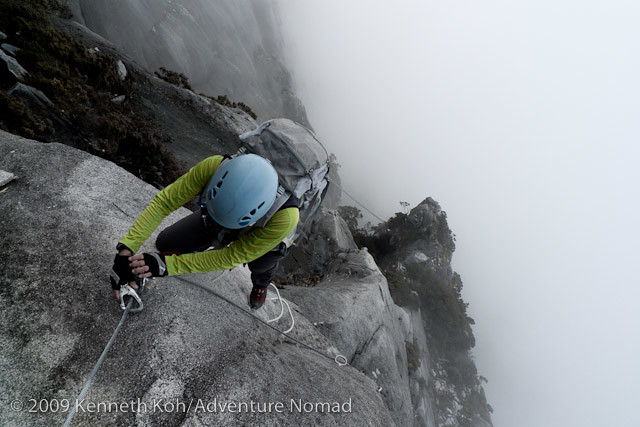
Low's Peak Via Ferrata, Malaysian Borneo.  I applied a desaturation effect in Lightroom to maintain the simple clean lines in the image.
I was a die-hard JPEG shooter when I wrote this article 'Optimize Your Camera Settings'.  At the time, I thought shooting RAW was complicated and I wanted to keep things simple by shooting JPEG, and letting the camera 'process' my shots for me.  Pro Mountain Biking photographer, and fellow blogger, Seb Rogers, talked me into giving RAW a shot.  I'll be frank: It was a struggle, with a steep learning curve.  But, if I knew then what I know now, it might have been a lot easier.

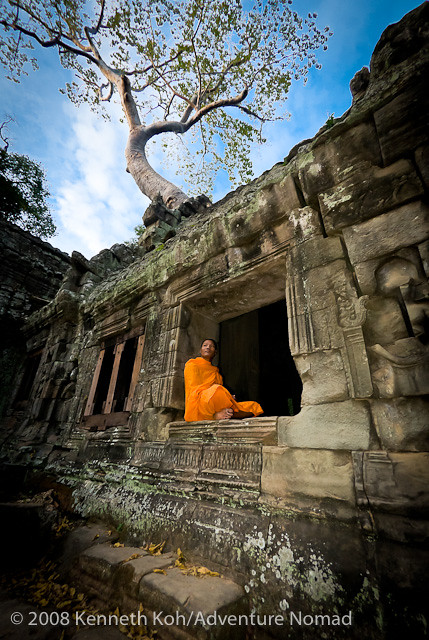
Monk at Ta Prohm, Cambodia.  This is one shot that would not have been possible with JPEG.  The monk is sitting in shadow, but I was able to bring back some detail in his face with some creative work using Adobe Lightroom.

The Problem with JPEG...
For a travel and adventure shooter needs to work fast, and usually gets only one chance to make a shot, the two biggest reasons to shoot RAW are:

1. Adjustable White Balance
Loosely speaking, white balance is the color temperature of the scene.  In tungsten lighting, it is warm, and JPEG shooters walking indoors will have to change the White Balance setting on their cameras from Daylight to Tungsten, in order to avoid overly orange looking images.  If you forget to change the white balance when walking back outside, you'll end up with bluish images.  The JPEG White Balance AUTO setting usually does a fine job in DAYLIGHT, but struggles in unusual lighting, like tungsten or underwater.  With RAW, I simply leave it in AUTO, and adjust it back home on my computer if required, when I have plenty of time, and no pressure.

2. Greater Dynamic Range
Correctly speaking, this should read greater exposure latitude.  What I'm getting at is that with post-processing in RAW, you can recover a greater range of tonal details, from dark shadows and washed out skies.  Even with a properly exposed shot, a JPEG shooter, who has less exposure latitude, may end up with washed out skies that he cannot recover.

Climbing Mt. Rinjani, an active volcano in Indonesia.  Highlights in the sky at sunrise are retained in the RAW image.
Those two reasons should be enough for any adventure/travel shooter to switch from JPEG to RAW.  If you're not convinced, here's the kicker:


RAW is SIMPLE
The problem with JPEG is that once you've clicked the shutter, and the image is made, there is very little leeway to change whatever is wrong with it.  This means that you have got to get it right in-camera.  To maximize my chances of getting it 'right' when I shot JPEG, I used to spend quite a bit of time with each new camera adjusting and testing each parameter (Exposure, Saturation, Contrast, Sharpness, etc) in order to optimize it's settings

Shooting RAW, I still need to test out the camera, but now I usually only test for Exposure.

It's in the Software
The key to keeping it simple is in the software.  I use Adobe Lightroom 3.  To me, it's like Apple's iPhoto on steroids.  It's an organizer, library, image editor and slideshow creator.  The real strength of Lightroom is in it's Develop (editing) module.  I can't remember the last time I used Photoshop, as Lightroom does enough for me.

Step one to using Lightroom 3 is to get some education, and probably the best reference book is Scott kelby's Adobe Photoshop Lightroom 3 for Digital Photographers.

Goatherd and son, India.  Nikon D300, 50 F/1.4G.  Standard Import Preset settings applied in lightroom.
Step two is to set up an Import Preset, so that when you import your images from your camera, all the settings you want done are automatically done for you.  The trick is to figure out what settings you would like made on ALL your images.  I like bright, punchy images, so I use these settings with my Nikon D300:

Presence:
Clarity 35
Vibrance 35
Saturation 0

Tone Curve:
Medium

Sharpening:
Amount 50
Detail 50
Masking 50

These settings work for the 90% of images that live on my hard drive.  For the 10% of images that I deem worthwhile, I'll also work on the white balance, tones, dust removal (if required), etc.

The beauty about working RAW files in Lightroom is that image editing is non-destructive.  That means that you can play around with these settings while you're learning, and if a few months later, your skills improve and you decide you want to rework those images, they are all there for you.

Next:
Part IV: Advanced Tips

Tuesday, August 11, 2009

Ferguson Hill Transparent Speakers

Ferguson Hill FH007. FH008 Sub not in image.

I bought a set of these last week. It’s one of the bigger purchases I’ve made this year that’s not related to photography or sports. It is a set of transparent speakers for my iPhone/PC. They are expensive, but boy, they sound great and they look awesome!

These speakers look as if they are designed and engineered purely for sound. There’s no exotic wood cabinet, no grilles covering the speaker cones, no frills. Just naked, pure looking speakers.

I did have a little trouble with the speakers when I bought them. I shot off an email to the company and got an almost immediate reply from the founder, Timothy Hill. He solved one problem with ‘crackling’ when I moved the volume switch (turns out to be dust on the volume potentiometer). The second problem was terminal, it turned out that the FH008 Subwoofer was faulty and needed to be replaced.

I found the literature a bit scarce and emailed Timothy Hill for some advice on the initial setup of the FH007/FH008. Here’s what he said:

“Use a small screwdriver to set the ‘bass level adjust’ on the back of the FH007 mini amplifier to about 3/4 of the way round;
Then set the frequency on the back of the sub to about 70Hz or just before half way;
Then set the volume on the sub to also just before half way.
After this, listen to a few different types of music and make small adjustments on the sub to suit.”

I’m no audiophile, and how these speakers sound really depends on what you listen to. To my ears, these speakers excel for anything with strong vocals, acoustic or natural sounds, which is what I bought them for.

Anyway, I like 'em :o)

Saturday, August 1, 2009

Black and White

My present watch is a cheapo Timex that has proven to be simple and reliable, but when the duct tape holding my Timex together became a little too embarrassing, I figured it was time to get a new watch, recession notwithstanding.

I’ll admit that I’m vain, and began a search for an outdoor oriented limited edition timepiece. I also wanted a watch with built-in compass and altimeter functions, which will surely come in handy for the upcoming Tour de Timor with its massive hills.

Here’s a short list of what I found:


Suunto XLander Military Edition
Two of my previous Suuntos had issues with waterproofing. All my previous Suuntos had plastic faces, which tend to scratch easily. The military edition addresses both these issues with 'stinger' push buttons that can be used underwater (same technology as Suunto dive watches) and the use of a scratch resistant glass face. If you’re into the stealthy military look, this watch has a black negative face, comes encased in a black aluminum housing, and is equipped with a durable black rubber strap. Way cool!


Casio Protrek (Pathfinder) PRW-1300WFJ-7JR World Wildlife Fund Limited Edition
I got my first triple sensor Casio ‘Protrek’ watch in the early 90’s (80’s?). It was super reliable and super chunky. Back then, the limit of the altimeter was only 14,000ft. I suppose that was fine for Japan and most of the contiguous USA, but pretty useless once you’re in the big mountains of the Himalaya. It was still working great when I gave it away.

Casio has come a long way since then. Casio’s altimeter now works to 32,800ft (10,000m), more than enough for any terrestrial pursuit. The key feature is the built-in ‘tough solar’ panel, which recharges the internal battery so theoretically, you’ll never need to change batteries.

I ended up ordering the The Casio Protrek (Pathfinder) PRW-1300WFJ-7JR World Wildlife Fund Limited Edition from www.amazon.jp. The watch is white (which is still a cool color, though may not be for much longer :o), super slim and ridiculously expensive. Well, I hope I’m getting what I pay for: This watch is a limited edition Pathfinder/Protrek and Casio’s only made 1000 pieces.

Sunday, March 29, 2009

Review of GPS Apps for the iPhone 3G

Maps
Free and pre-installed with the iPhone 3G
This is the basic GPS app that comes installed with the iPhone 3G. It is useful if you are connected (or online) to search for a destination and can plot a route plot a route there. It will cache (or put viewed portions of that map into temporary storage) so that you can still navigate to your destination if you go offline. The downside is that there is no ‘heading up’ display. The display is ‘North up’, which means that North is always displayed at the top of the iPhone. Not a big deal, I just rotate the iPhone to keep myself orientated.

MotionX GPS v 4.1
$2.99 at the App Store
This is perhaps the slickest looking GPS App out there for the iPhone, and it is the only paid app in this review. MotionX GPS allows you to plot, store and review tracks. I’ve been using this program for a few months now, and MotionX continues to improve the functionality of this app. The latest version (v4.1) allows maps (OpenStreetMap) to be cached, and hence allows increased functionality. However, while I’ll admit that I’m still new to OpenStreetMaps, I just don’t find the current OpenStreetMaps to be all that useful.


xGPS 1.2.0
Free, but for Jailbroken iPhones only

xGPS is currently the only app that will allow you to download Google Maps onto your iPhone using its own free program called xGPS Manager (available for Windows, Mac and Linux OS). Although the documentation is scant, the process is straightforward. I downloaded the Google maps for my upcoming bicycle tour of Vietnam easily and transferred them onto my iPhone quite painlessly.

This app will allow you to use those stored maps for navigation. While you are online, you can search out destinations and store them as routes that you can call upon when you are offline for navigation. xGPS also allows ‘heading up’ navigation, which means that the map will automatically align itself to the direction of travel. The kicker: xGPS v1.2.0 also has turn-by-turn voice navigation.

xGPS is a little rough around the edges, but it is also currently the single most useful GPS app out there. With the iPhone 3.0 firmware update just around the corner, if there is still a reason to jailbreak your iPhone, xGPS is it.

Monday, March 9, 2009

iPhone 3G Apps for the Adventure Traveler

There are thousands of Apps available from the Apps Store on iTunes. The beauty of it is that some of them are free, and some cost only a few dollars to buy. Here’s what’s on my iPhone:

Fieldrunners $4.99
Game On! Fieldrunners is highly addictive and it makes time go by a lot faster when I’m waiting in airports, etc. It’s a sort of strategy game where you build defense towers to stop the hoards from reaching the other side. The developer has made good use of the iPhone’s touch screen to control the game and it works really well. The beauty about this game is its simplicity. There’s no complicated plot to follow, and its not particularly fast paced. You can be playing when your flight is called, pause the game, and when it’s time to continue, you are right back into it.


MotionX GPS $2.99
The iphone 3G comes with a built in GPS, and to maximize its use, you need GPS software. For $2.99, MotionX GPS is a no brainer. I don’t think there is any other software in the App Store that competes with this one. Keep in mind that there are no maps supplied with this program, so what you get is a ‘bare-bones’, non-mapping GPS, similar to the old Garmin Etrex, only with much shorter battery life ☹ I don’t leave mine on all the time, I use it selectively when I travel, in conjunction with paper maps or key in coordinates that I’ve researched and prepared. (Update 11 Mar: MotionX GPS Version 4.0 is now available and has the ability to stream live maps to the iPhone. Version 4.1 being launched by next week will have the ability to cache or store those maps onto the iPhone. That's going to be big!)

MotionX GPS 4.0. Image Courtesy of Fullpower MotionX.

Hey! Here’s an idea: Wouldn’t it be cool if somebody could design a personal navigation tool using the iPhone 3G’s Accelerometers, so we could have some sort of Inertial Navigation system in conjunction with GPS. (Update 13 Mar: Fullpower, the developers of MotionX GPS, have hinted to me that something like this is in the works...)
Hmm…

AmbiScience PureSleep $0.99
I prefer this version to the Original Ambiscience Brain Power program (both $0.99 at the App Store). The program uses Brainwave Entrainment with Isochronic Tones (Whaa? Yeah, I had to Google it to find out what it is). I won’t pretend I understand the science behind it, but my career as an airline pilot and unending battle with perpetual jet lag has taught me the value of sleep, and anything that claims to help me sleep better is worth a try.

The program uses a combination of soothing ambient sounds, monotonous music, and a low frequency droning that is the brain entrainment component.

I’m hoping the developer will include more tracks, like waves, or waterfalls or the Soothing Stream track found in the original BP program. Also, I hope he finds a way to separate the music volume from the ambient sounds, just as the entrainment volume is a separate control. With different speaker/headphones combinations, especially at low volumes, the music can overpower the ambient sounds.

MobileStudio $1.99

This is one of many apps that let’s you transfer and view a whole bunch of document types on your iPhone, such as PDFs, Word Documents, spreadsheets and movies. However, this is the only app I've found that let's me edit certain documents, such as text (.TXT) documents. Note that the program may have stability issues with large file sizes as it has occasionally not been able to open large PDFs until I reset my iPhone.

Units (Free)
I wanted a converter like the one on the Dashboard of my Mac, and this is pretty close. It has a simple interface and converts currency, length, weight, etc. It works offline as well, remembering the last currency conversion rate. Best of all, its free. Enough said.

Wednesday, March 4, 2009

Mophie Juice Pack Air


In my review of the iPhone 3G a couple of weeks ago, I recommended the Mophie Juice Pack as a means of extending the battery life of the iPhone. I’ve come to learn that Mophie is coming out with a new model this Spring: the Mophie Juice Pack Air. This new model better protects the iPhone with more complete coverage, has an integrated power switch, is thinner and more lightweight. It sacrifices some battery capacity, and at 1200 mAh, has only 2/3 of the original Juice Pack’s capacity. It looks pretty good, and I'm holding out for one.

The Mophie Juice Pack Air for the iPhone 3G ($79.95) is available for preorder at http://www.mophie.com/products/juice-pack-air.

Tuesday, February 17, 2009

Adventure Nomad’s iPhone 3G Review

Want to buy me something for Christmas? How about the Otterbox Defender Case for the iPhone 3G

The iPhone 3G has proven to be a most versatile and useful gadget that would suit the needs of most urban travelers to a tee, but how does it measure up for adventure travelers? After using it for over a week in Northern Thailand, here’s my take on it:

Mobile Internet Device
This is where the iPhone shines and probably the main reason you bought one. I was also considering an Asus Eee PC and the iPod Touch, but I’m glad I went with the iPhone. Mainly because it syncs seamlessly with my Mac, but also because you are more likely to have your iPhone with you should you unexpectedly come across a WiFi hotspot. WiFi hotspots are popping up all over the world, usually at coffee shops. My routine has been to find a coffee shop, buy a cup of coffee, click on my newspaper app, and then surf a bit while the news and my email automatically download. If I’m short on time, I can just stand outside the coffee shop to download my email and read it offline.

Solio Classic Solar Charger

Power
Power is the Achilles heel of electronic gadgets for adventure travelers. If you’re iPhone is constantly on, such as if using an app like MotionX GPS, you may only get 5 hours of battery life. (Tip: put the device on airplane mode in the backcountry where there is no cell coverage anyway). Normal usage demands that you recharge the iPhone’s non-replaceable battery nightly, and this may not be possible in adventure travel. An external battery pack like the Mophie Juice Pack - Case and Rechargeable Battery for iPhone 3G can extend the useable time and a solar charger like the Solio Hybrid Solar Charger with the iPhone 3G Adapter Tip (available from www.solio.com) can recharge both the batteries of the iPhone, and the Juice Pack.
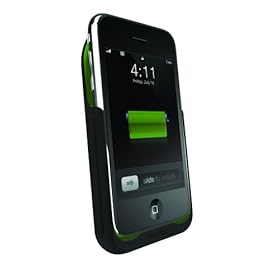
Mophie Juice Pack for iPhone 3G

Keyboard
The iPhone employs a non-tactile, virtual keyboard using the iPhone’s LCD screen. After an intensely frustrating first week of mistyping SMS text messages and email, I’m finally beginning to learn to use it properly. Still, the iPhone’s virtual keyboard is probably the most elegant, compact and lightweight solution at the moment.

Survivability

I’m not kidding myself; this is not a rugged gadget. This is probably the most expensive, fragile, hydrophobic gadget I’ve ever stuffed into my pocket. It was not built to withstand the rigors of outdoor living in any way. At the moment, mine lives encased in a cheapo silicone case stuffed into a Ziploc bag, but I might get a better silicone case, like the Otterbox Defender for iPhone 3G, for outdoor adventures. How long will it survive? I’m well known for destroying gadgets, and so only time will tell…

Tuesday, January 27, 2009

Another Reason To Buy An iPhone

All Images courtesy of Fullpower MotionX.

Need another reason to buy an iPhone? How about because of its GPS capabilities?

I’ve been mulling over whether to buy and iPhone 3g or iPod Touch for surfing and emailing at wifi hotspots while travelling, and one reason that might swing me over to getting the iPhone instead of the Touch is because of its GPS capability. A GPS is only as good as its software and MotionX has been getting some good reviews. Here’s a pretty good review by Navigadget.


Note that there are no stored maps, so you’ll need to use it in conjunction with paper maps or prepared waypoint/destination coordinates that you can punch in. The downside is that the iPhone’s battery will only last about 4-5 hours, so your time with the GPS is limited, and probably only good for short trips or the odd emergency.

You can read more about it at the MotionX website or download the app at the Apple App Store. There is also a free version that you can try out, the MotionX Lite, but that comes without a Heading/Track Up display and will be less practical to navigate with. Personally, I’d just spring $2.99 for the full version.

Friday, January 23, 2009

Backup Backup Backup

This is something everyone needs to do. How regularly one chooses to do it, what storage media to use, and how many backups one chooses to make then really depends on how much one values the data. I use a 15” MacBook Pro laptop for my work, and I’ve been researching external hard drives for Mac to do just that. I’ve found a couple of interesting ones for the Mac user:

Data Robotics Drobo
The most interesting product I’ve come across is Data Robotics Drobo. This is a drive enclosure with four empty bays. You need to provide it with at least two hard drives for data protection, but you can eventually house 4 hard drives allowing up to 16TB of storage. Drobo automatically configures the appropriate array to protect your data.
Drobo will salvage and rebuild your data in the event of a hard drive failure, and it does so automatically. Drobo lets you know when a drive needs to be replaced, either because of drive failure or because of more space is required, and you simply pop out the old drive and insert a new one.

There's a demo video here on the Data Robotics website.

The best price I’ve found for this is $369.95 (after rebate) at Amazon.com: Data Robotics Drobo 4-Bays USB 2.0 and FireWire 800 Fully Automated SATA Robotic Storage Array

Western Digital My Book Studio II
I ended up buying a 2 TB Western Digital My Book Studio II. The unit is essentially 2 x 1TB WD ‘Green Power’ hard drives in a brushed aluminum case that nicely matches my MacBook Pro. The Green Power drives use 30% less energy, do not get hot and the drives work very quietly because it doesn't need a fan.
The drive comes preformatted for the Mac as a Raid 0 array (2 heads writing shared information to the two separate drives simultaneously, increasing speed). I chose to configure it as a Raid 1 array (each head writing the same information to its own drive, duplicating the same information, thus taking more time, but creating a mirrored backup). This means that I reduced the available storage capacity to just 1 TB, but that data is backed up. The provided software from WD makes it easy enough to do. The software also installs a WD icon on the Mac, which warns you if the health of any drive deteriorates or if you’re running out of storage room.

It costs $296.99 at Amazon.com: Western Digital 2TB My Book Studio Edition II Hard Drive with Quad Interface (FW400/FW800, USB 2.0 & eSATA)

Summary
There are a number of storage options out there. These are just a couple of interesting options I looked at for my Mac. The Drobo is not exactly cheap, but the combination of ease of use and expandability are very compelling. The 2TB Western Digital My Book Studio II has a more limiting storage capacity, but it is very good value if your storage needs are smaller.

Saturday, June 21, 2008

Nikon D300 and Lightroom

My obsession over the past couple of weeks has been trying to get my D300’s Matrix Meter to behave. I said in my last post that I neglected to set the brightness to -1 on my camera when using Nikon’s D2xModes. Unfortunately, this has no effect when I use Adobe Lightroom to process my RAW NEFs. Zip. Nada. This is because adjusting Nikon D300 Picture Control settings has no effect on NEF files imported into Lightroom.

For the moment, I’ve settled on parking the exposure compensation at -1/3 EV for outdoor shots for when I don’t have time to tweak the exposure settings. This seems to be a good compromise between protecting the highlights and the shadows. Tastes vary, and you should know that I prefer the look of blocked shadows over clipped highlights and so I don't mind accepting a slight underexposure at capture.

The default settings Lightroom uses when opening up an image aren’t necessarily the best to use with the D300. They can make images appear overly bright. If you like them, that’s fine, but I also recommend you have a look at Michael Kirk’s MLK Preset. His preset is designed to make images from the D300 appear similar to those from the D200, which for me is a better starting point. I found the preset here in the Adobe Lightroom Forum, and unfortunately, you need to be a member to access it. Fortunately, membership is free.

Monday, June 9, 2008

Apple Iphone 3G Launch

Photo of the Apple iPhone 3G from the Apple website

The Apple iPhone 2, officially known as the Apple iPhone 3G, was announced today, June 9th. On July 11th, it will officially launch in 22 countries, including Singapore.

Other than the über cool factor, has it any practical use for an adventure traveler? I wasn’t convinced until I saw the original iPhone in use last month, at a free wireless hotspot in Pokhara, Nepal. The proliferation of wireless hotspots around the world, even in relatively poor countries, makes this phone appealing. While I’m not always willing to lug around my laptop when I travel to remote locations on the off chance that I will be able to find a wireless hotspot, I almost always have my phone with me.

What’s new over the old iPhone? Well, the big new is that the iPhone 3G is no longer locked, so you’ll be able to buy the iPhone and use it like a regular phone. And you'll be able to buy it for a lot less than the old iPhone!

It's slightly thinner than the old iPhone, but packs in more capability for roughly the same weight. Other than Wi-Fi connectivity, the new iPhone can also connect you to the Internet using a mobile service provider’s faster 3G connection (where available). iPhone 3G also comes with built-in GPS, and an accelerometer (play games that sense movement similar to the Nintendo Wii).

It’s available in 8GB or 16GB versions, and it comes in black or white.

Woohoo!

Tuesday, March 11, 2008

Best of the Web

Here are some of the sites and blogs that make my "Best of the Web" list. It may be worth your while to check them out.

Dave Black is a sports photographer who dishes out a new article at the start of each month. Very educational.

Seb Rogers is one of the world’s best mountain biking photographers. He isn’t afraid to share information and updates his blog regularly.

Inside Lightroom – Pros, like adventure sports photographer Michael Clark, share their insights and offer tips about using Adobe Lightroom and more.

Chase Jarvis – Commercial photographer. He shoots for the big outdoor sports companies like REI. He has a blog and a bunch of great videos like how to pack gear, making a rugged laptop case. I’ve seen them all.

Aurora – For truly inspirational photographs, I like to check out the outdoor collection at Aurora Photos. Great for Oohs and Aahs.

Thom Hogan – Resident Nikon guru. It’s always good to hear what Thom has to say.

Flickr - everyone needs a place to showcase his or her photography. Flickr is one of the best places to showcase your stuff, as well as share information.

Clubsnap – You’ve got to keep abreast with the latest photographic gear and prices. The Forum at Clubsnap allows me to do all that, as well as sell and buy used equipment here in Singapore.

Strobist – most of the stuff is beyond me, but my flashwork is crap, so I’d better pay attention here.

Nikonians – keeps me abreast with the latest Nikon news.

The Blogs at nationalgeographic.com offer an interesting read. They aren’t updated that often though. Still, it’s on my google reader.

That’s it for now!

Wednesday, February 20, 2008

Always Use Protection

Well, after the bad experience of having one of my images taken from Flickr and used without my permission, I have to say that Flickr may be good for something after all. Lonely Planet saw this image of mine on Flickr and is considering using it for one of their travel guides.

I’ve heard it said that the only 100% way to safeguard your images is to never show them to anyone, and after having heard more horror stories, I’m going to be much more careful from now on, and so should you.

First, some copyright basics:

Your copyright is secured automatically upon creation of the image. You do not have to do anything else, like registering the image with a copyright office. A copyright means that only you have the right to copy the image, distribute it, display it in public, etc.

It is not a requirement, but to ensure there is no misunderstanding, you should have a form of notice to the public that the image is protected by copyright. This notice should contain these three items:

a. the word “Copyright” or the symbol ©;
b. the year of first publication; and
c. the name of the owner of the copyright.

Here’s some advice that might help protect you and your images on Flickr and other photo sharing sites. If you are using Flickr to archive or back-up hi-res files of your images, then only step one will be useful to you.

1. Under Flickr’s ‘Permissions and Privacy’, change who can download your photos to ‘Only You’. This will hide the “All Sizes” button and deny access to your image’s larger sizes. Unfortunately, there are hacks to work around this, but at least, this step is easy to do and will make it tougher to steal an image.

2. Upload the smallest size necessary. I’m considering uploading images that are just 500px at its longest edge. This is the medium image size and the default size that Flicker shows. Should someone download it, the file size will not be a big enough for printing.

3. Reduce the quality to the minimum needed for display. Be careful with this, you don’t want to reduce the quality so much that your photos look bad. A setting of Medium or around 50% should work for most images around 500px long. A higher quality may be needed for larger images.

4. Watermark your image with the copyright notice. I use Lightroom, which allows me to put in a small watermark easily. But a small watermark can easily be cropped out. A large watermark will deface your image, but will also make it much more difficult for someone to edit out.

Monday, February 18, 2008

Ayee!! My Template's Gone Loco

Well, this new template appears to be having some problems. Despite my best efforts to recover my adsense ads, they seem to have disappeared and reverted back to Google's Public Service Ads (take a look at the right most column). Re-installing the template doesn't seem to have any effect as it seems to have a memory. If anyone has any idea what's happening to my Isnaini 'Bloggerized Adsense' template, please clue me in.